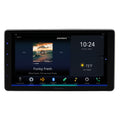


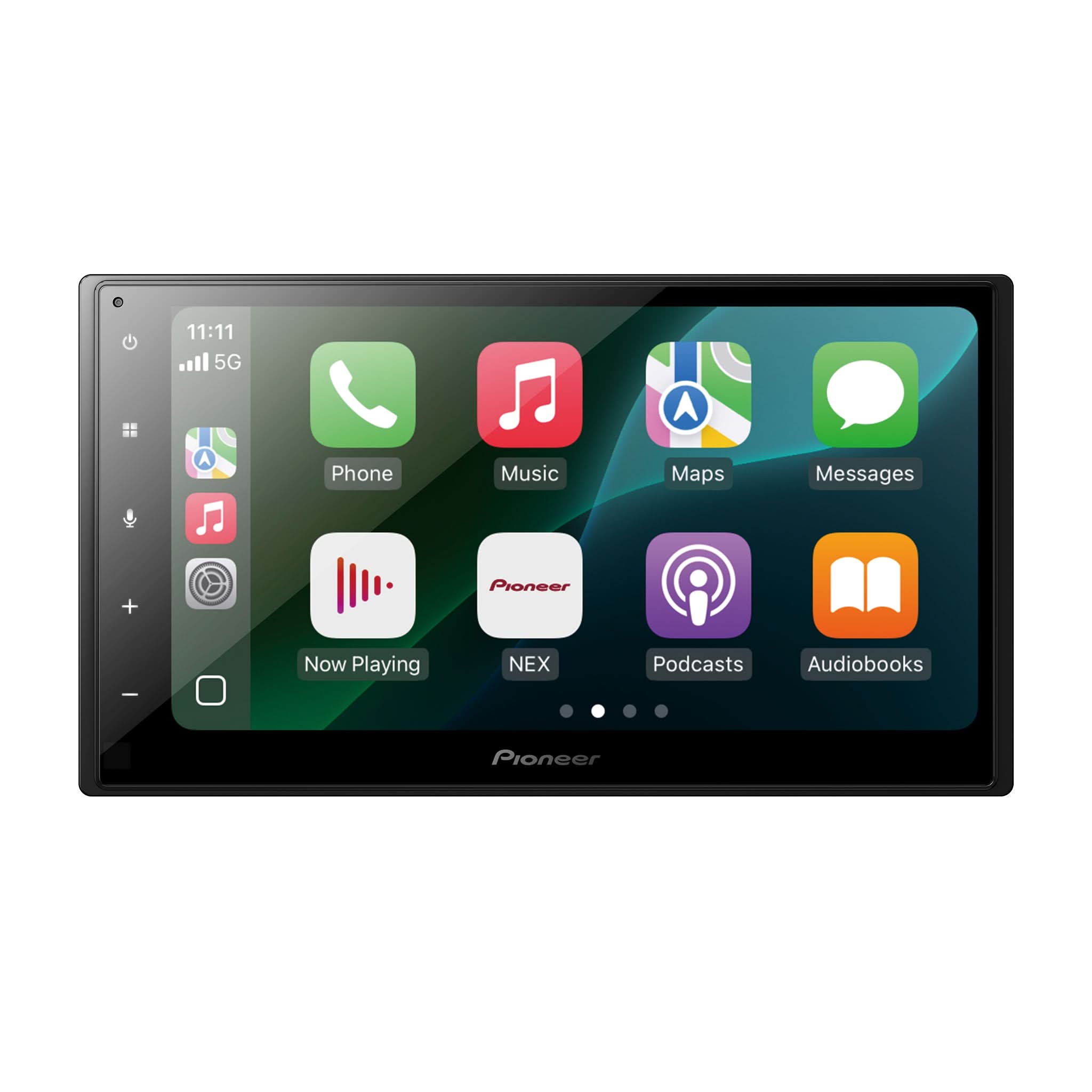




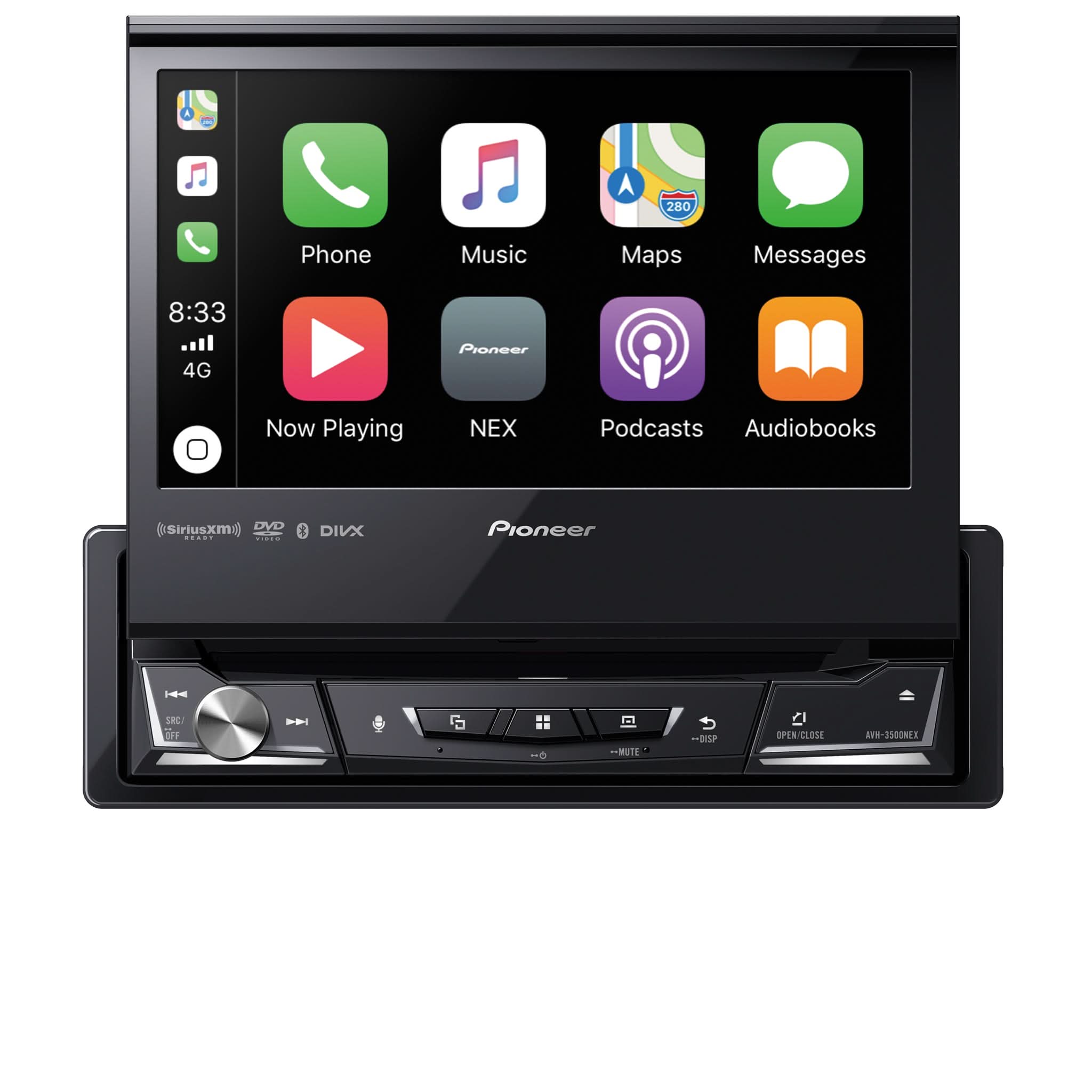

New Firmware Updates Now Available DMH-W3050NEX • DMH-W3000NEX • DMH-2000NEX

New Firmware Updates Now Available
DMH-W3050NEX • DMH-W3000NEX • DMH-2000NEX
Early to Mid-October 2026 Firmware Release Announcement
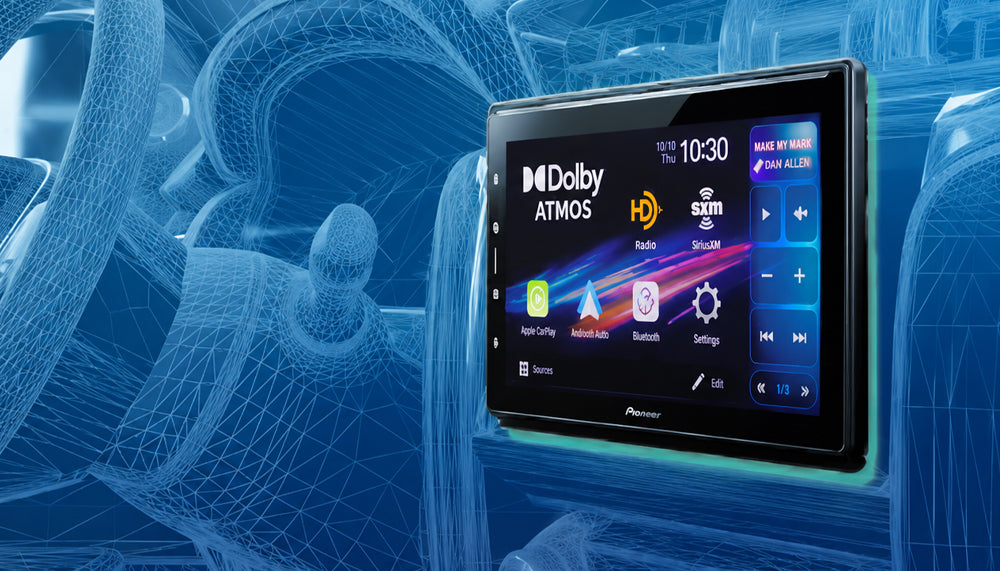
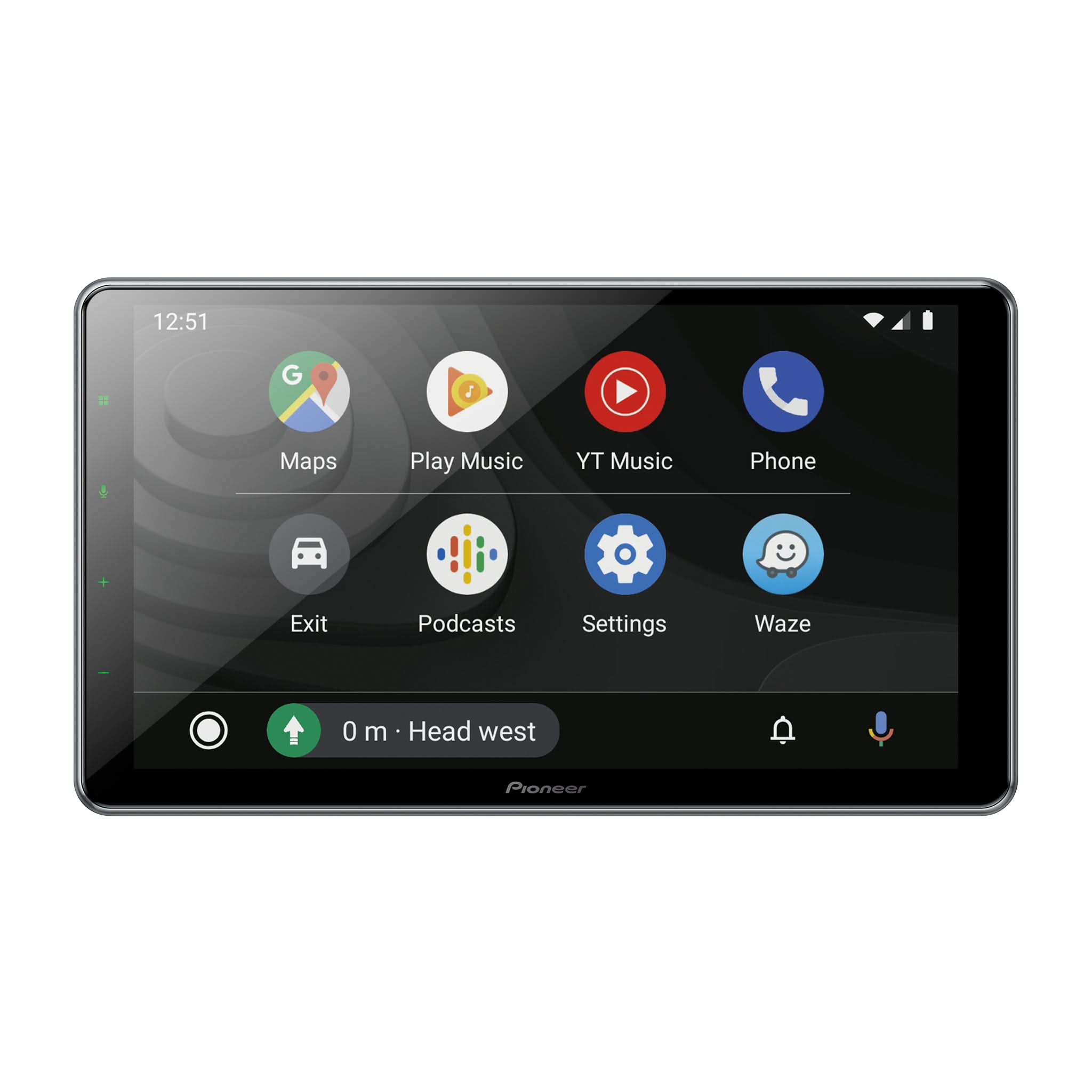
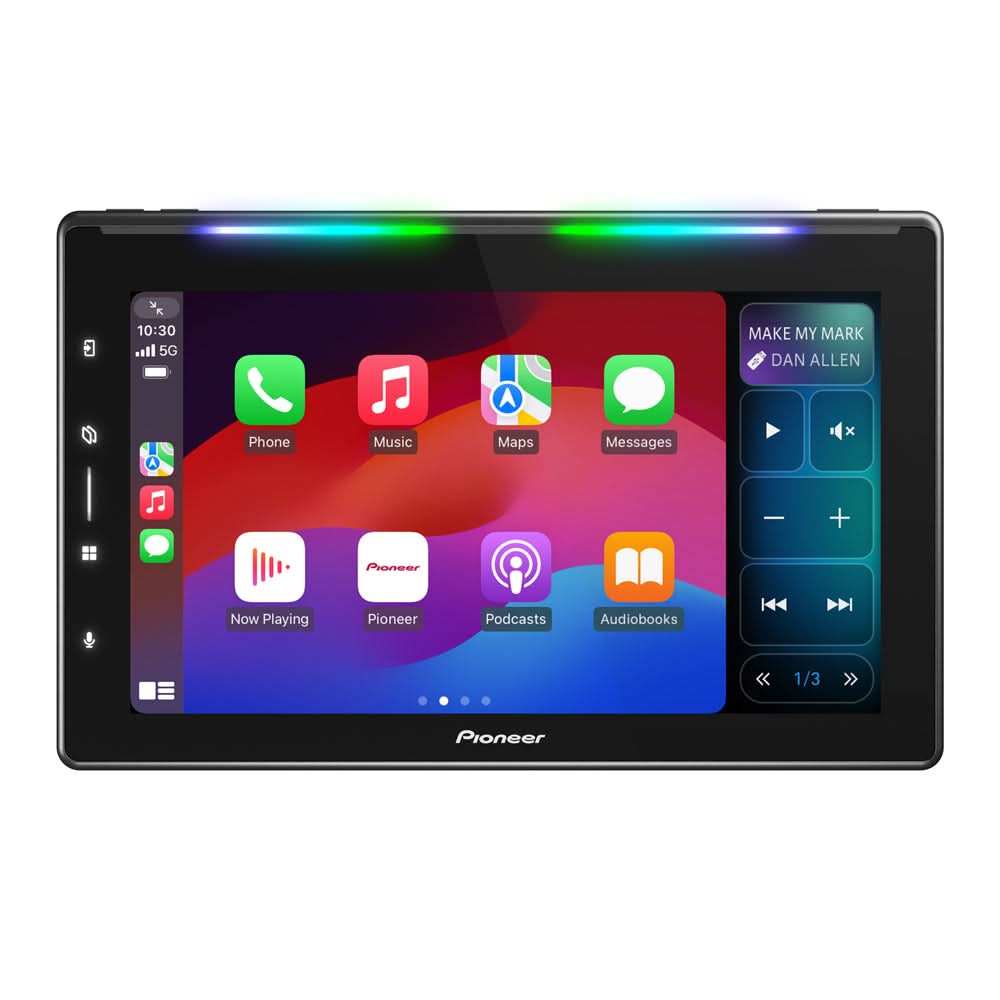
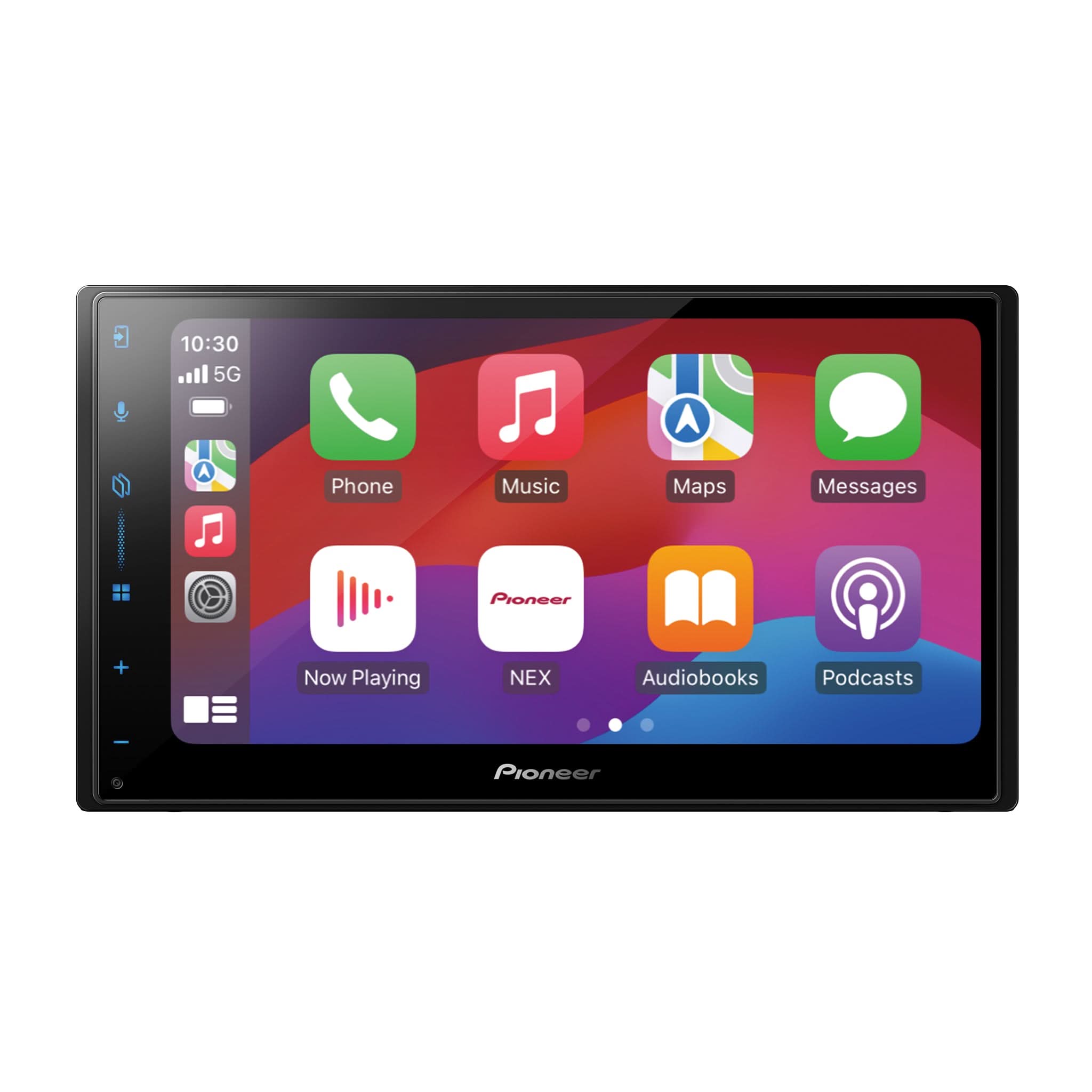
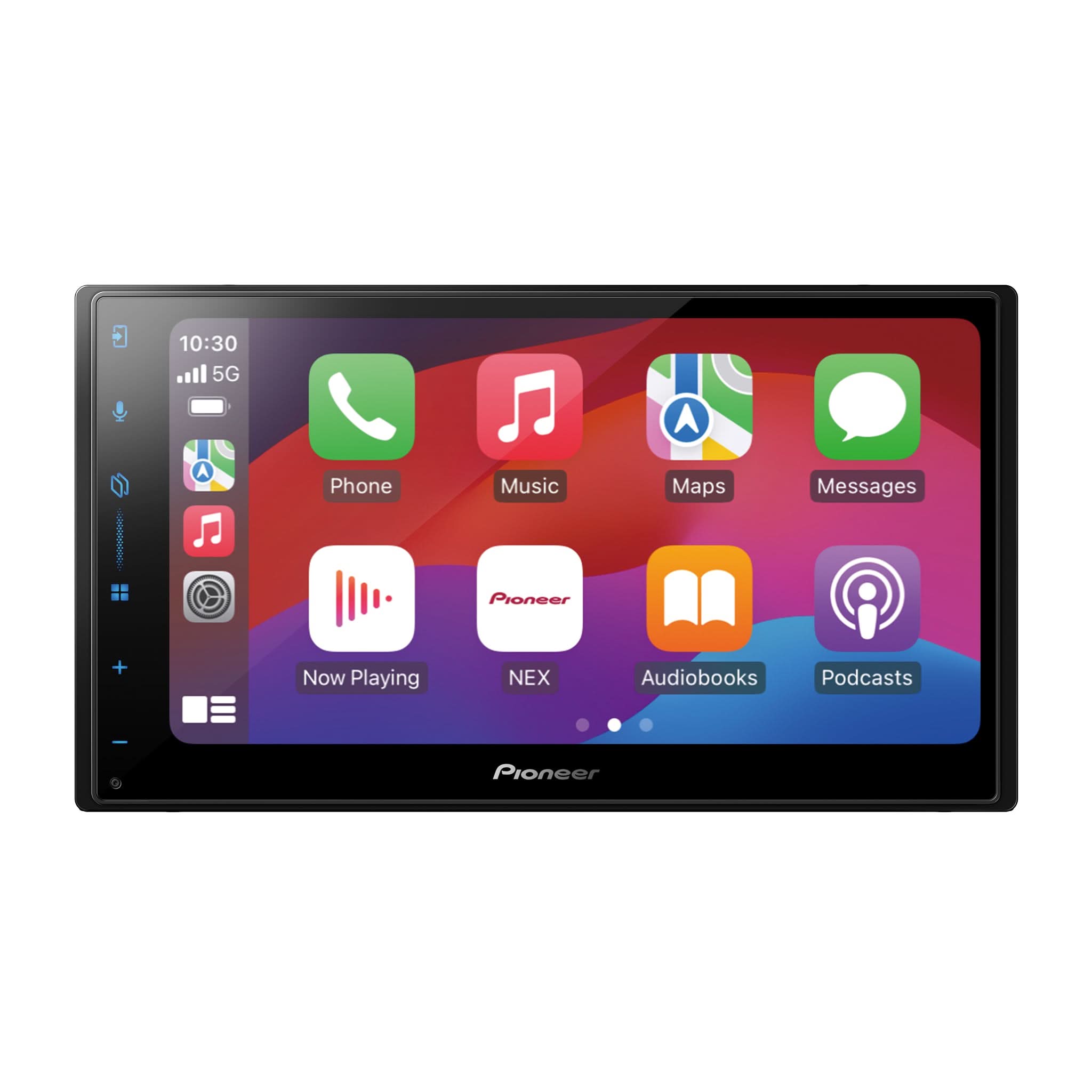
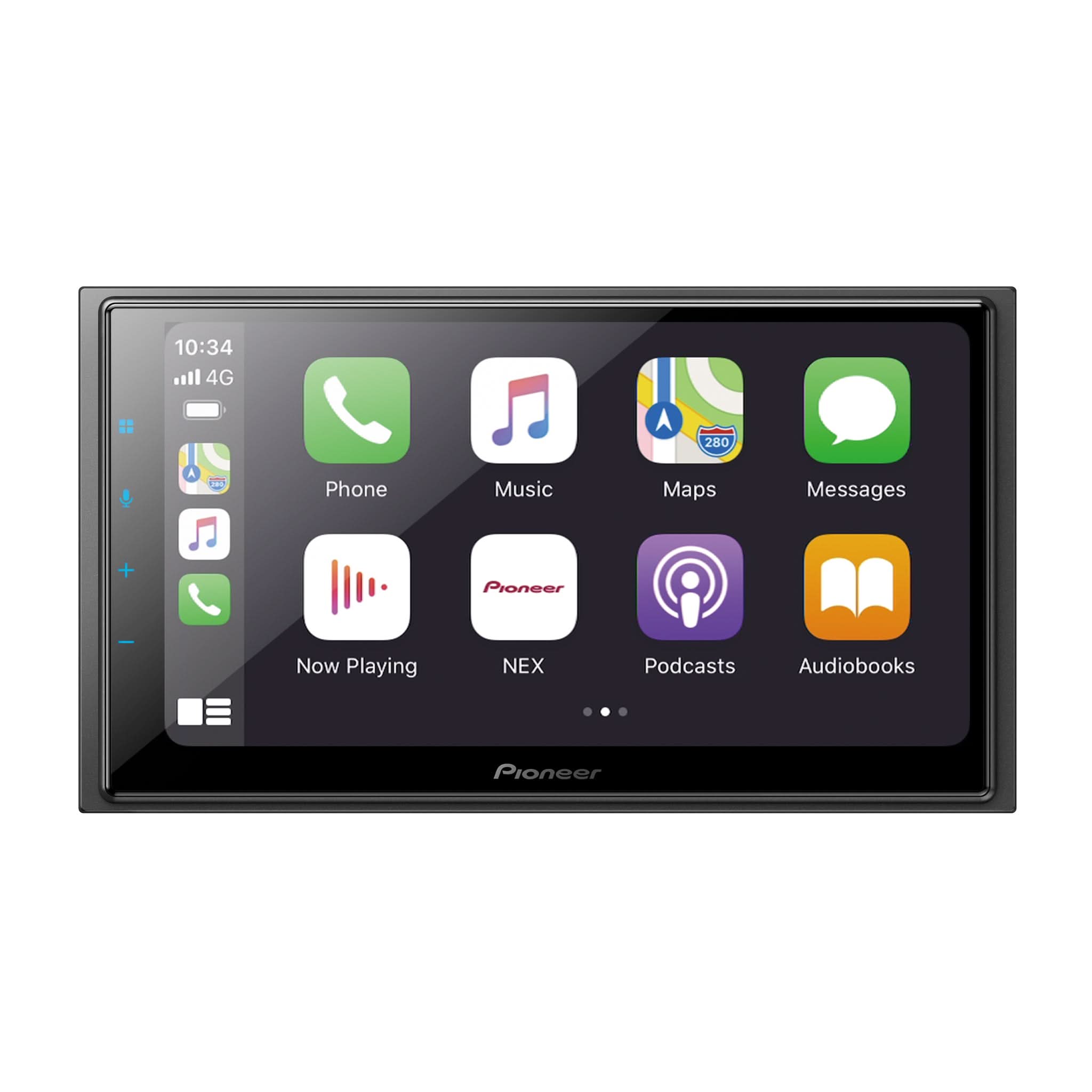
Pioneer has released new firmware updates for the following multimedia receivers:
- DMH-W3050NEX — SOC Version PIO_WS02_1.1.08
- DMH-W3000NEX — SOC Version PIO_WS02_1.1.08
- DMH-2000NEX — SOC Version PIO_WS03_1.1.05
These firmware updates are now available for download.
This Tech Tip provides information about the new firmware releases, recommended preparation steps, important precautions, and USB firmware update guidance.
Important — Firmware Downloads Are Model-Specific
Although the DMH-W3050NEX and DMH-W3000NEX both update to SOC Version PIO_WS02_1.1.08, each receiver requires the firmware package specifically provided for its model number.
Always search using your receiver's complete model number and download the firmware provided specifically for that receiver.
Why Install the Latest Firmware?
Installing the latest available firmware ensures your receiver receives the software improvements included with the newest release.
Before beginning the update, verify your receiver's complete model number and current SOC version.
New SOC Versions
DMH-W3050NEX
SOC Version PIO_WS02_1.1.08
DMH-W3000NEX
SOC Version PIO_WS02_1.1.08
DMH-2000NEX
SOC Version PIO_WS03_1.1.05
Before You Begin
Before performing the firmware update:
- Visit usa.pioneer, then select Support > Updates & Manuals.
- Search using your receiver's complete model number.
- Download the firmware package specifically provided for your receiver.
- Prepare a blank USB flash drive, 2 GB or larger, formatted FAT32.
- Disconnect external mobile devices before beginning the firmware update.
Note: Search using your product's complete model number to quickly locate the latest firmware, manuals, and support articles.
Important Safety Information
Before performing the firmware update:
- Park the vehicle in a safe location and apply the parking brake.
- Maintain stable power to the receiver throughout the update.
- If the vehicle engine is running to maintain battery voltage, perform the update only in a well-ventilated outdoor area or another properly ventilated location.
- Never run the vehicle inside a closed garage or enclosed space.
- Do not turn the vehicle or receiver OFF during the firmware update.
- Do not operate the vehicle until the firmware update has been completed.
USB Firmware Update
Step 1 — Verify the Current SOC Version
Before updating, check the SOC version currently installed on the receiver.
Compare the displayed SOC version with the new version for your model:
- DMH-W3050NEX — PIO_WS02_1.1.08
- DMH-W3000NEX — PIO_WS02_1.1.08
- DMH-2000NEX — PIO_WS03_1.1.05
If your receiver already displays the applicable SOC version listed above, the latest firmware is already installed.
If an earlier SOC version is displayed, proceed with the firmware update.
Step 2 — Download the Correct Firmware
Visit usa.pioneer, then select:
Support > Updates & Manuals
Search using your receiver's complete model number and download the firmware package provided specifically for that model.
Important: Even though the DMH-W3050NEX and DMH-W3000NEX both update to SOC Version PIO_WS02_1.1.08, their firmware packages are model-specific and are not interchangeable.
Verify the receiver's complete model number before downloading and preparing the firmware update.
Step 3 — Prepare the USB Flash Drive
After downloading the correct firmware package, extract the downloaded ZIP file.
The extracted firmware package contains an update folder with the required firmware files:
- CUST_PIO.BIN
- CUST_PIO.md5
Copy the complete update folder to the root (top level) of the blank FAT32-formatted USB flash drive.
USB Preparation Notes
- Do not rename the update folder.
- Do not rename or modify the firmware files inside the folder.
- Do not copy the compressed ZIP file directly to the USB flash drive.
- Do not add unrelated files to the USB flash drive.
Step 4 — Install the Firmware
Connect the prepared USB flash drive to the receiver and access the receiver's firmware update function.
Follow the receiver's on-screen prompts and the instructions provided with your model-specific firmware download to complete the update.
Once the firmware update begins:
- Do not remove the USB flash drive.
- Do not turn the receiver or vehicle OFF.
- Do not operate the receiver during the update.
- Allow the firmware update to fully complete before operating the receiver.
Step 5 — Verify the Firmware Update
After the update has completed, allow the receiver to finish restarting.
Verify that the appropriate SOC version for your receiver is displayed:
DMH-W3050NEX
SOC Version PIO_WS02_1.1.08
DMH-W3000NEX
SOC Version PIO_WS02_1.1.08
DMH-2000NEX
SOC Version PIO_WS03_1.1.05
After the Update
After completing the firmware update:
- Confirm the correct SOC version is displayed.
- Verify normal receiver operation.
- Verify Bluetooth® operation and pairing.
- Confirm Apple CarPlay® and Android Auto™ operation as applicable.
- Review and restore customized receiver settings if necessary.
Need Assistance?
For firmware downloads, product manuals, and additional product support, visit usa.pioneer, then select Support > Updates & Manuals, or contact Pioneer Customer Support at 1-800-421-1404.
Trademark Information
Pioneer is a trademark of Pioneer Corporation.
Apple CarPlay® is a registered trademark of Apple Inc.
Android Auto™ is a trademark of Google LLC.
Bluetooth® is a registered trademark of Bluetooth SIG, Inc.