





Firmware Version 3.09 Now Available

August 2026 Firmware Release Announcement
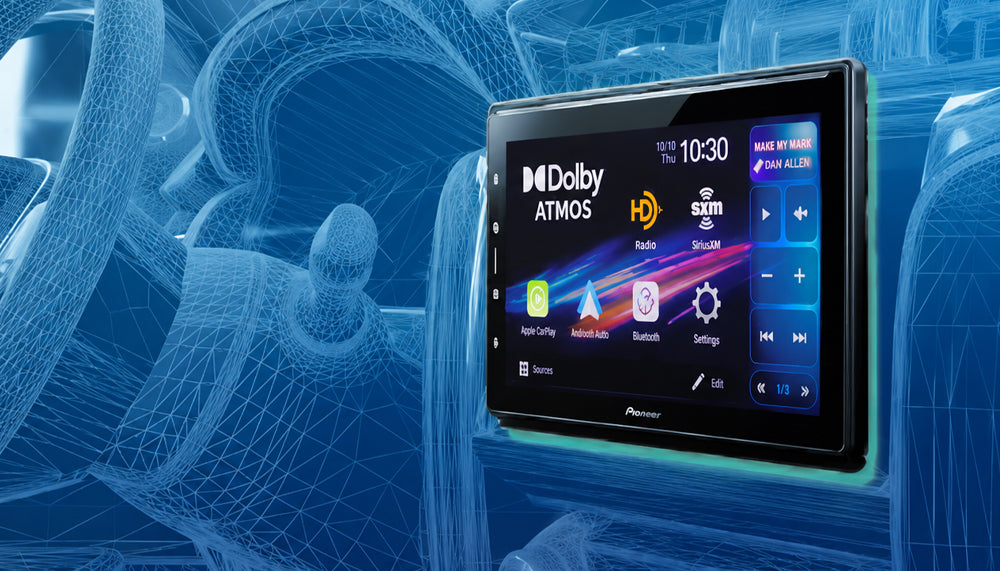
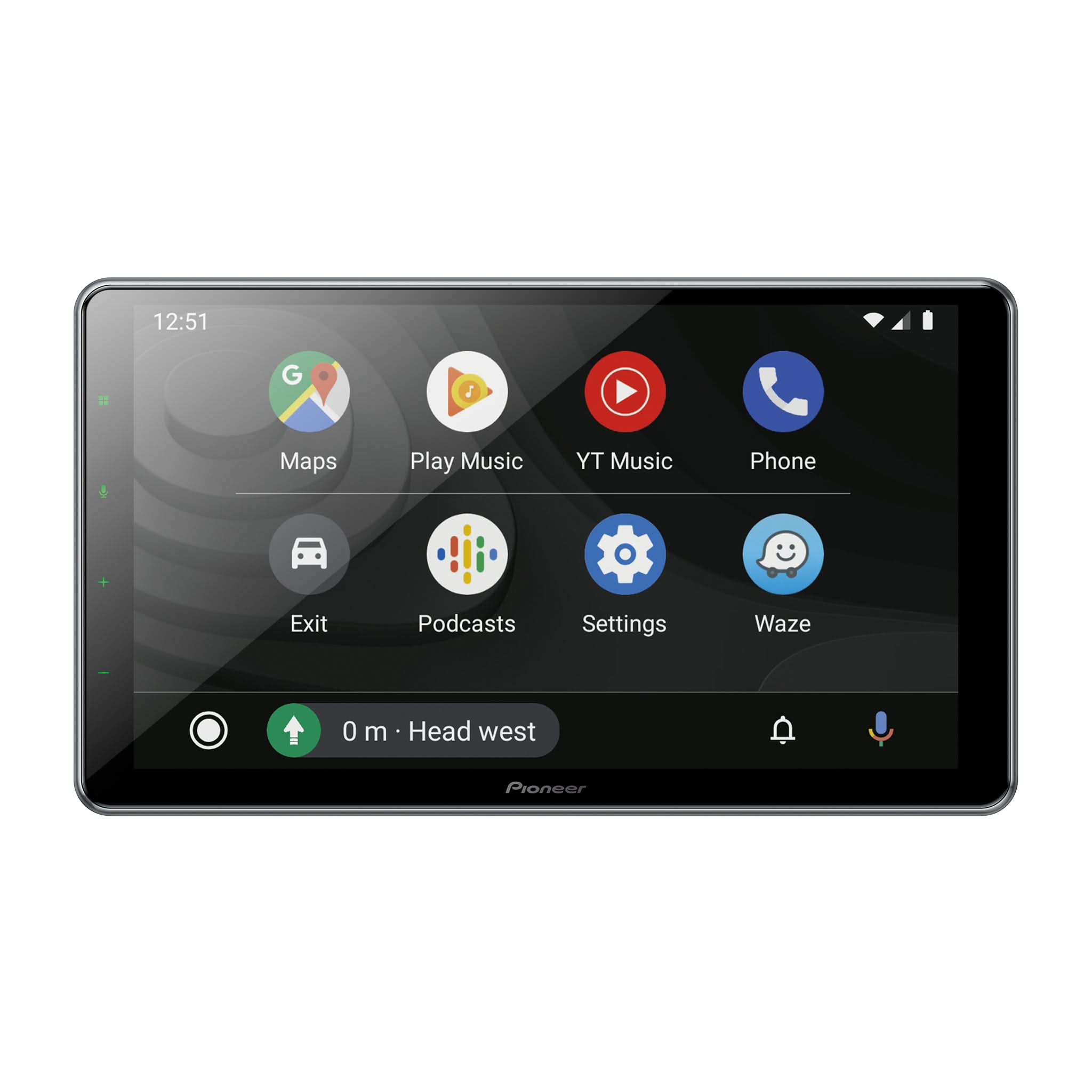
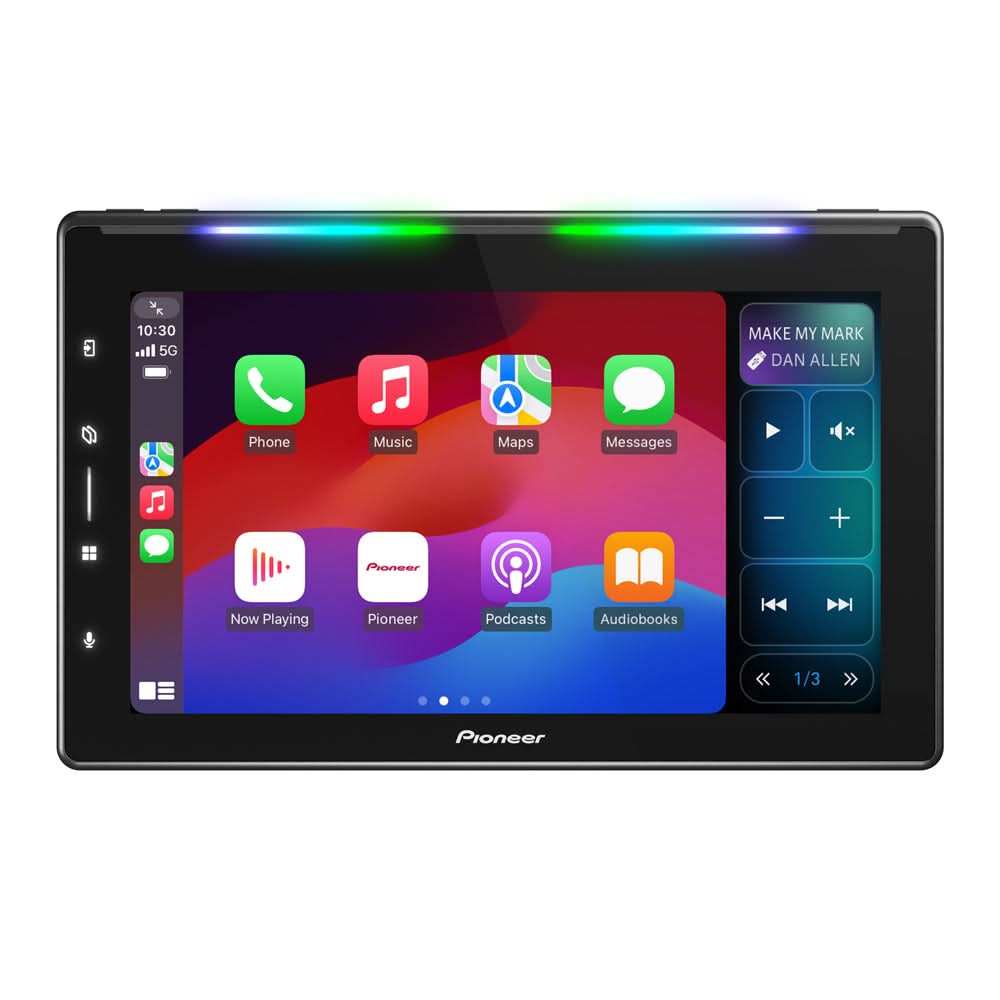
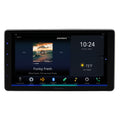
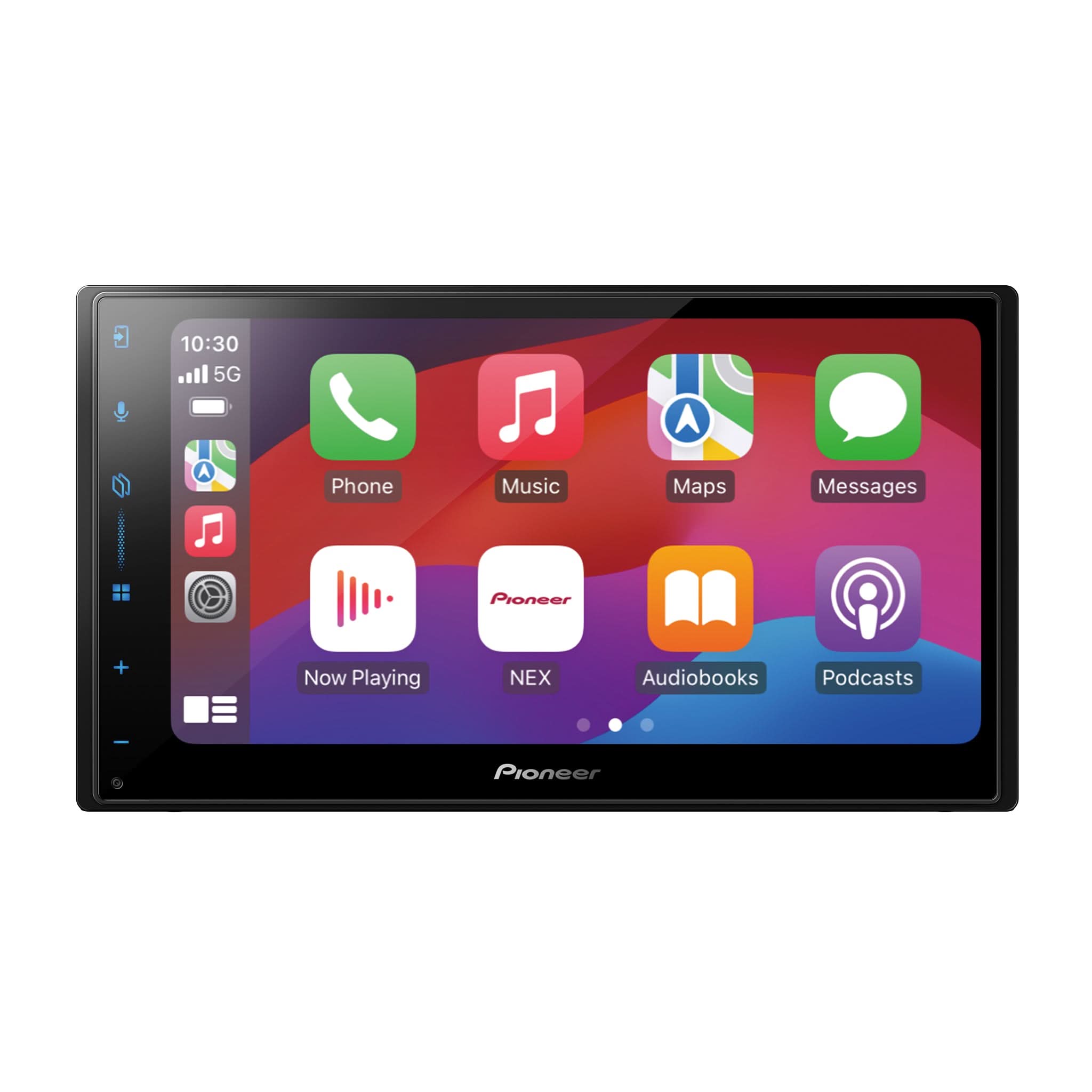
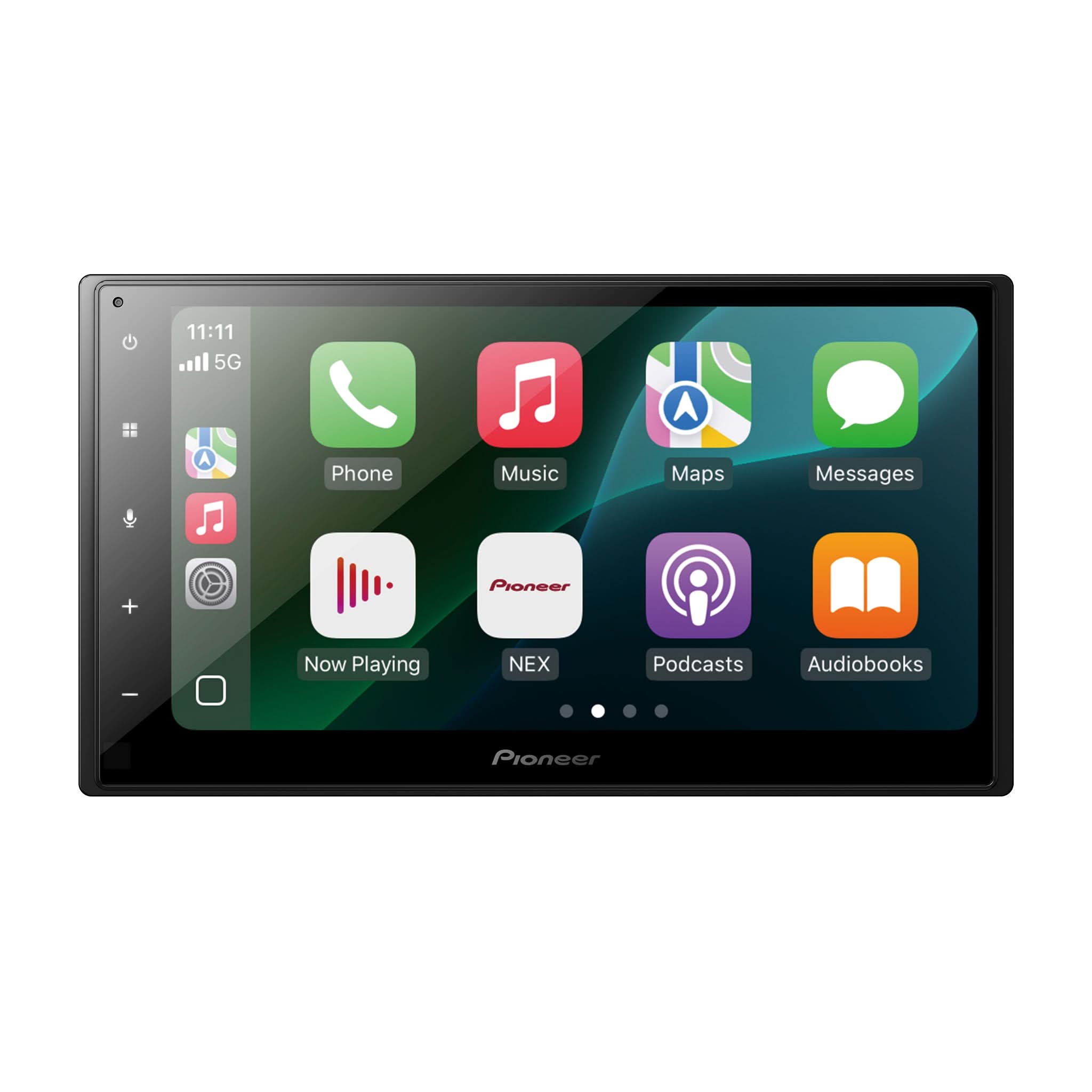
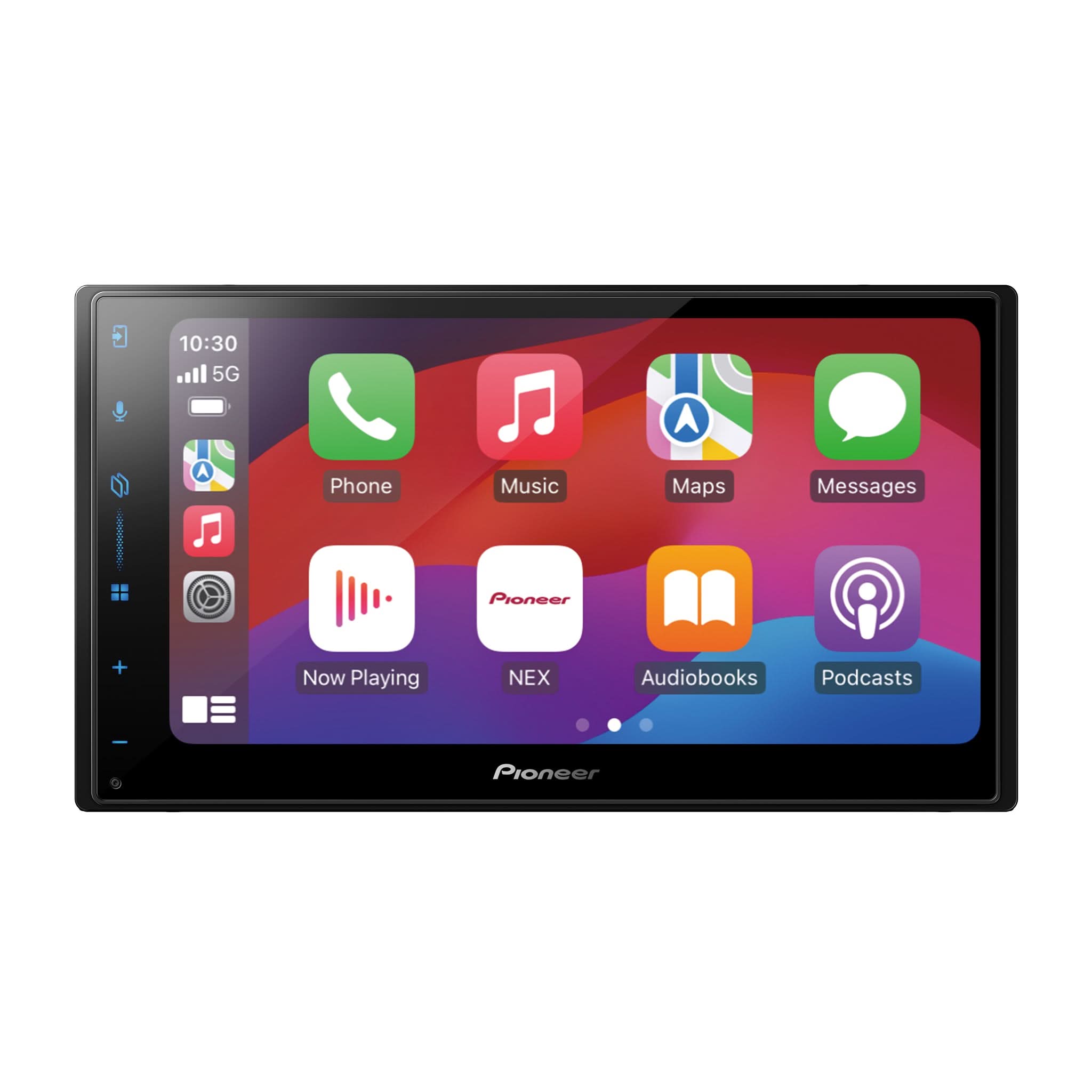
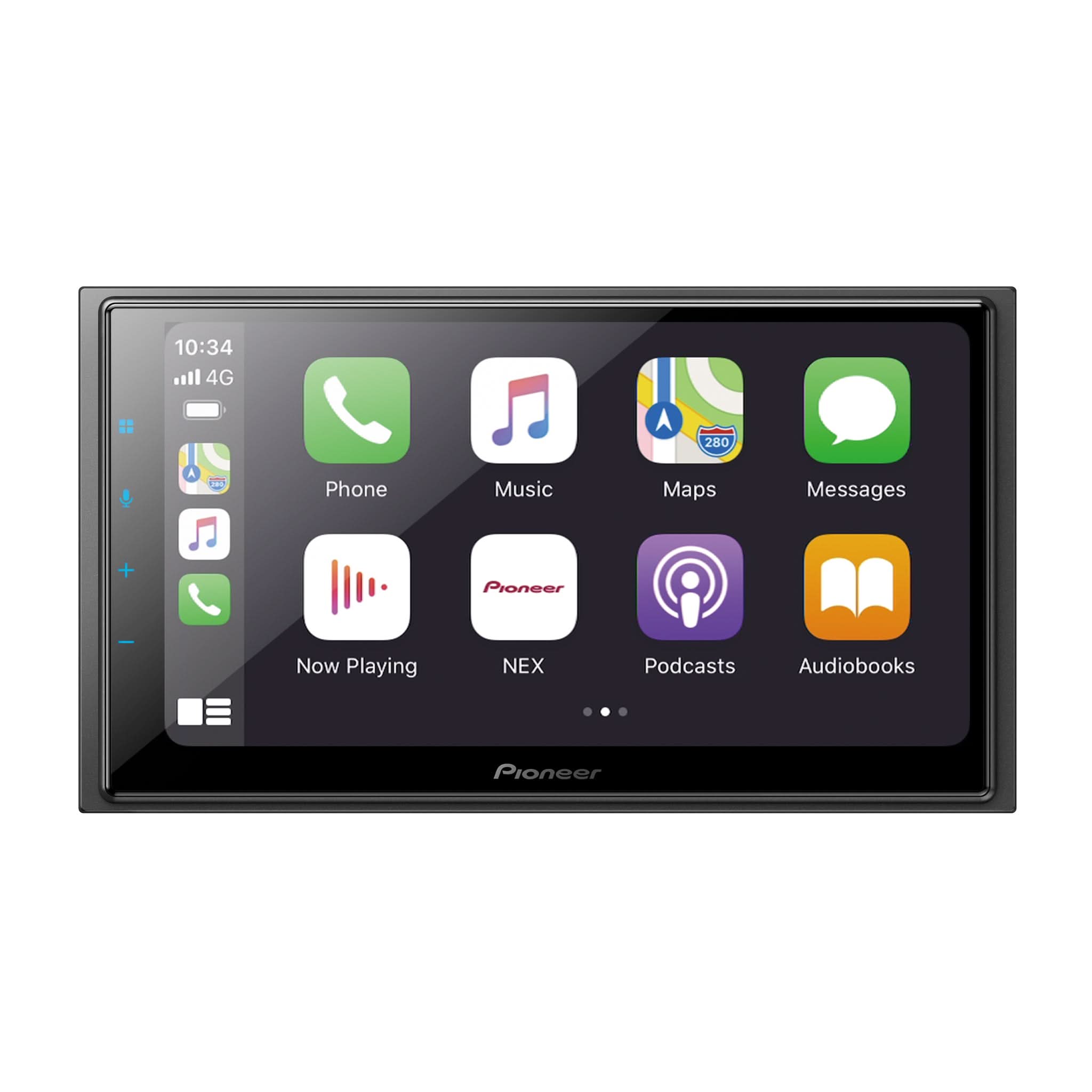
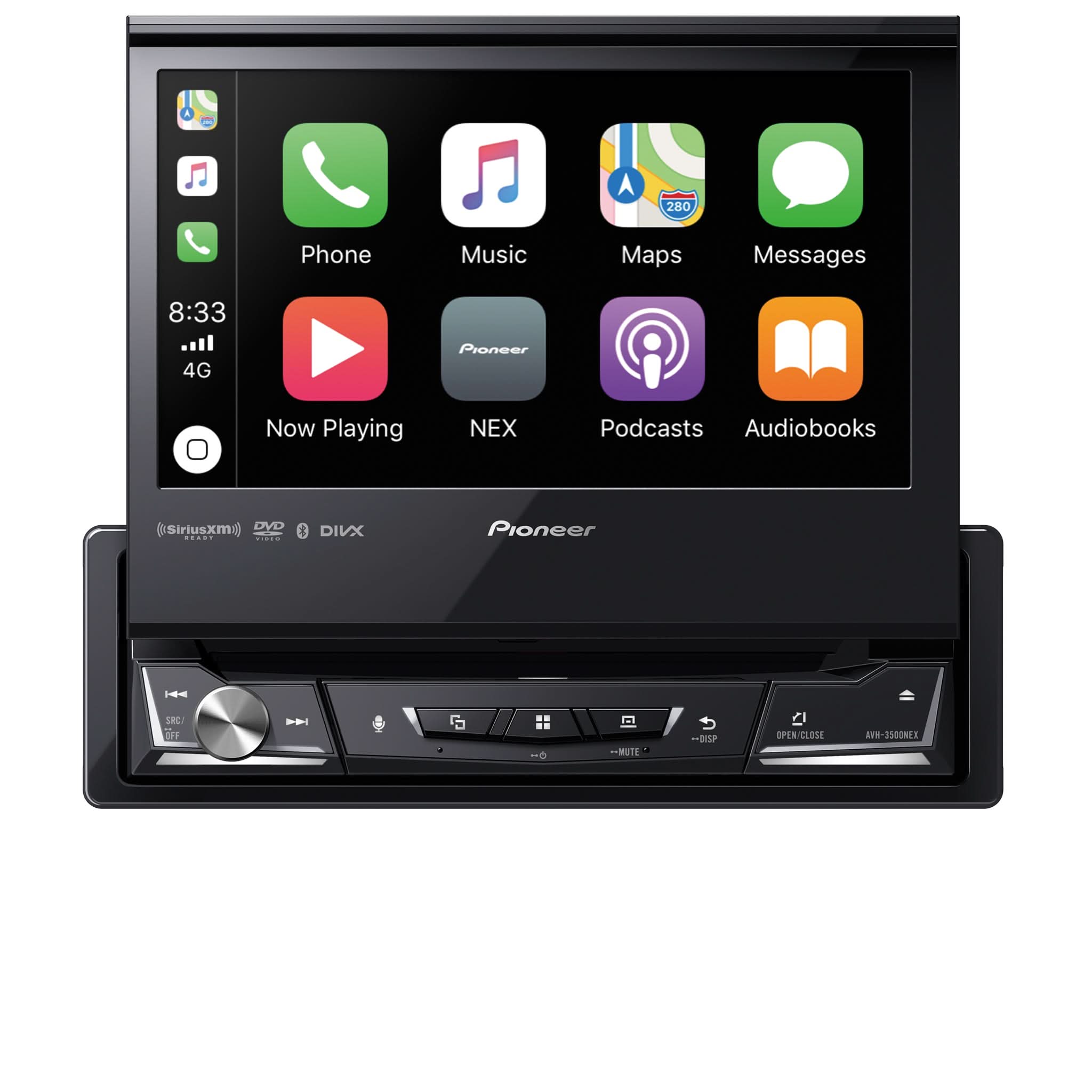
Pioneer has released Firmware Version 3.09 for the following multimedia receivers:
- DMH-W4600NEX
- DMH-W4660NEX
- DMH-WC5700NEX
- DMH-WC6600NEX
- DMH-WT7600NEX
- DMH-WT76NEX
- DMH-WT8600NEX
- DMH-WT86NEX
Although each of these receivers uses Firmware Version 3.09, every model requires its own model-specific firmware package. Firmware files are not interchangeable, even when the firmware version number is identical.
This Tech Tip announces the Firmware Version 3.09 release and provides an overview of the available firmware update methods, recommended preparation steps, and important precautions before updating your receiver.
Why Install the Latest Firmware?
Firmware Version 3.09 includes software improvements designed to enhance overall system performance and stability.
Pioneer recommends installing the latest available firmware to ensure your receiver benefits from the newest software enhancements and performance improvements.
Firmware Update Methods
Firmware Version 3.09 supports two firmware update methods.
USB Firmware Update (Recommended)
A USB flash drive remains the recommended firmware update method for customers, dealers, and professional installers. It provides the simplest and most reliable update process.
CarAVAssist™ OTA Firmware Update (Alternative Method)
If you have previously configured the Pioneer CarAVAssist™ app with your compatible receiver, the app will notify you when Firmware Version 3.09 becomes available.
Download the firmware to your smartphone using the CarAVAssist app. Then, on the receiver, navigate to:
Settings > System > System Information > Firmware Update
Select CarAVAssist as the update source and follow the on-screen prompts to transfer and install the firmware.
Tech Support Tip: If CarAVAssist has not been configured previously or a wireless update cannot be completed successfully, Pioneer recommends using the USB Firmware Update procedure described below.
Before You Begin
Before updating your receiver:
- Verify your receiver model is one of the supported models listed above.
- Visit usa.pioneer, then select Support > Updates & Manuals.
- Search using your receiver's complete model number (example: DMH-WT8600NEX) to locate the latest firmware update article.
- Download the Firmware Version 3.09 package for your specific receiver model.
- Prepare a blank USB flash drive (512 MB or larger, formatted FAT32 or NTFS).
Note: Search using your product's complete model number to quickly locate the latest firmware, manuals, and support articles.
Important
- Although all supported receivers use Firmware Version 3.09, each receiver requires its own model-specific firmware package.
- Firmware files are model-specific and cannot be shared between different Pioneer receiver models.
- A USB flash drive prepared for one receiver model cannot be used to update another receiver model, even when both use Firmware Version 3.09.
- Disconnect all external mobile devices before beginning the firmware update.
- If updating from Firmware Version 2.01 or earlier, any Steering Wheel Control (SWC) functions previously programmed using Learn Mode must be reconfigured after the update.
- Firmware Version 3.09 restores receiver settings to their factory defaults. Record any customized settings before beginning the update if necessary.
Important Safety Information
Before performing the firmware update:
- Park the vehicle in a safe location.
- Apply the parking brake.
- If the engine is running to maintain battery voltage, perform the firmware update only in a well-ventilated outdoor area or another properly ventilated location.
- Never perform a firmware update inside a closed garage or enclosed space.
- Do not operate the vehicle until the firmware update has been completed.
USB Firmware Update (Recommended)
Step 1 — Verify the Current Firmware Version
Navigate to:
Settings > System > System Information > Firmware Information
Verify your receiver model and current firmware version.
If the firmware version displayed is earlier than Version 3.09, continue with the update.

Step 2 — Download and Prepare the Correct Firmware
Visit usa.pioneer, then select Support > Updates & Manuals.
Search using your receiver's complete model number and download the Firmware Version 3.09 package for your specific receiver model.
After downloading the compressed (ZIP) file:
- Open the downloaded ZIP file.
- Open the folder contained within the ZIP file.
- Locate the firmware update file with the .avh file extension.
Example: This Tech Tip uses the DMH-WT8600NEX firmware package as an example. If you are updating a different supported receiver, the .avh firmware file will display your receiver's exact model number.
Copy the .avh firmware file to the root (top level) of a blank, formatted USB flash drive.
Important
- Copy only the .avh firmware file to the USB flash drive.
- Do not copy the compressed (ZIP) file.
- Do not copy the folder that contains the firmware file.
- Do not rename or modify the .avh firmware file.
- Verify the .avh firmware file matches your receiver's model number before proceeding.
Step 3 — Install the Firmware
- Turn the receiver audio source OFF.
- Insert the prepared USB flash drive.
- Navigate to:
Settings > System > System Information > Firmware Update
- Select USB as the update source.
- Follow the on-screen prompts to begin the firmware update.

Step 4 — Verify the Installation
When the firmware update has completed successfully, allow the receiver to restart automatically.
Return to:
Settings > System > System Information > Firmware Information
Confirm the receiver now displays:
Firmware Version 3.09

After the Update
After installing Firmware Version 3.09:
- Verify Bluetooth® pairings.
- Restore any customized audio or system settings if necessary.
- If applicable, reconfigure Steering Wheel Control (SWC) functions previously programmed using Learn Mode.
- Confirm normal operation of Apple CarPlay®, Android Auto™, Bluetooth®, and audio playback.
Need Assistance?
For firmware downloads, product manuals, and additional product support, visit usa.pioneer, then select Support > Updates & Manuals, or contact Pioneer Customer Support at 1-800-421-1404.
Trademark Information
Pioneer and CarAVAssist™ are trademarks of Pioneer Corporation.
Apple CarPlay® is a registered trademark of Apple Inc.
Android Auto™ is a trademark of Google LLC.
Bluetooth® is a registered trademark of Bluetooth SIG, Inc.