



How to Set the Clock on Pioneer DMH, AVH, MVH & AVIC Receivers

Tech Tip: How to Set the Clock on Pioneer DMH, AVH, MVH & AVIC Models
Clock-setting behavior varies between Pioneer DMH, AVH, MVH, and AVIC receivers depending on whether the unit uses GPS auto-time, built-in navigation, or manual time entry. This guide explains how each group handles time adjustment and how to troubleshoot common issues.
Group 1 — Models With GPS Auto-Time (DMH-W / WT / WC Series)
(These units include a GPS antenna and use satellite time to automatically set the clock.)
Examples:
DMH-WT8600NEX, WT7600NEX, WT6000NEX, WT5000NEX
DMH-WT3800NEX
DMH-WC6600NEX, WC5700NEX
DMH-W4660NEX, W4600NEX
DMH-W3050NEX, W3000NEX
DMH-2000NEX

Clock Behavior
-
Hour and minutes are automatically set by GPS
-
User may adjust:
-
Date Format: d/m/y, m/d/y, y/m/d
-
Time Format: 12-hour or 24-hour
-
Time Zone: (UTC +/–)
-
Daylight Saving Time: (DST)
-
How to Adjust
Method 1:
Home → Settings → System → Date & Time
Method 2 (Quick Access):
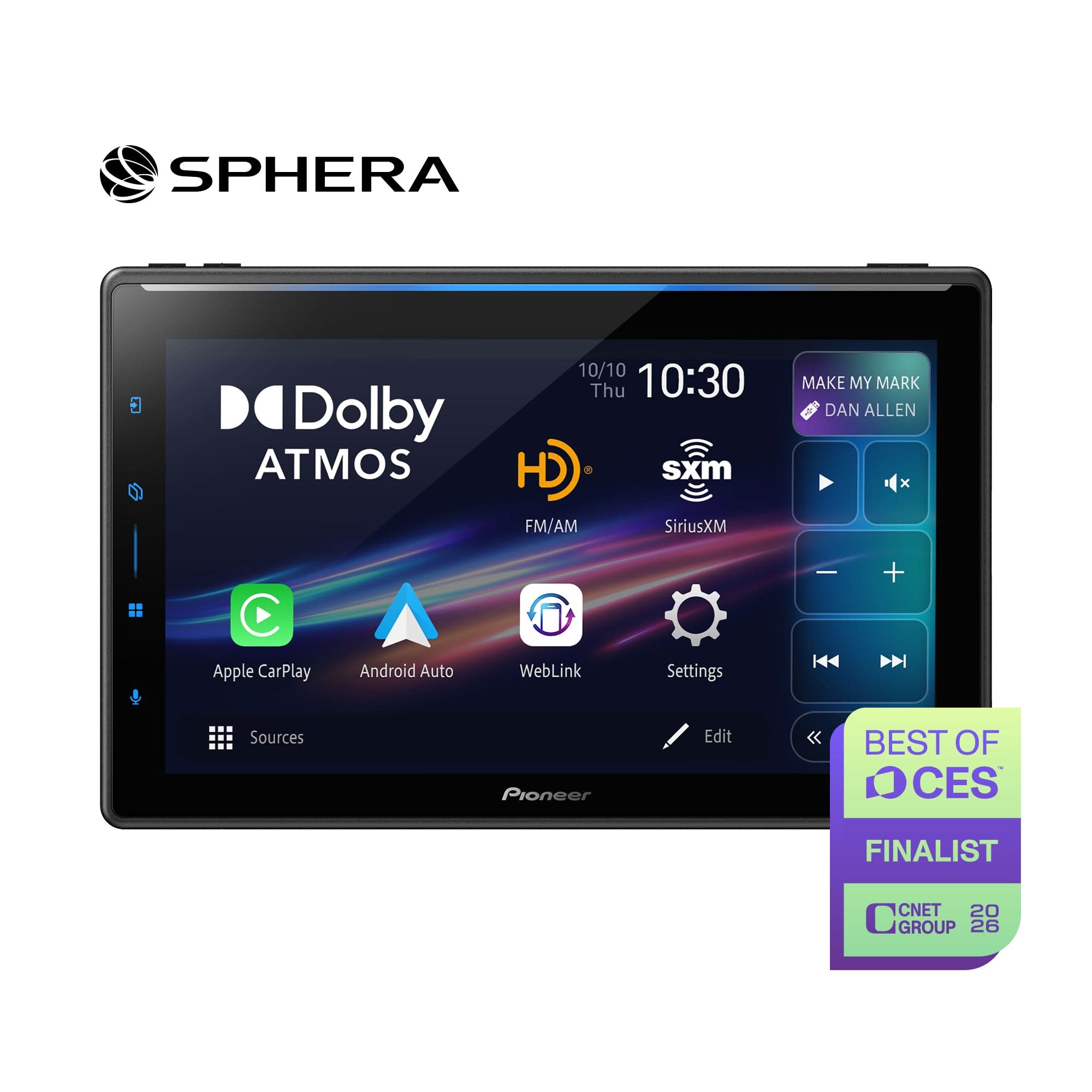
Tap the on-screen clock to open Date & Time instantly.

Clock Settings Menu Example

Seasonal Time Changes
-
Fall Back → DST Off
-
Spring Forward → DST On
(GPS handles all automatic corrections.)
Group 2 — Navigation Models with GPS Auto-Time (AVIC Series)
(Built-in navigation models always use satellite time.)
Examples:
AVIC-5100NEX, 6100NEX, 7100NEX, 8100NEX, 8200NEX
AVIC-W8400NEX, W8500NEX, W8600NEX
Clock Behavior
-
GPS automatically sets the time
-
User may adjust:
-
Time Format: (12-hour / 24-hour)
-
Date Format: (m/d or d/m)
-
How to Adjust
Touch the current time → adjust display formats
(Hour/minute cannot be changed manually.)
Group 3 — Manual Time Entry Models (AVH / MVH / DMH Touchscreen Models)
(These units do not use GPS for clock sync, even when a GPS antenna is included.)
Examples:
AVH-1330NEX
AVH-2500NEX
AVH-2550NEX
AVH-3500NEX
AVH-W4400NEX
AVH-W4500NEX
DMH-1500NEX
DMH-1800NEX
DMH-2660NEX
MVH-1400NEX
MVH-2300NEX
MVH-2400NEX
Clock Behavior
Manual entry required for:
-
Year
-
Month
-
Date
-
Hour
-
Minute
Supports:
-
12-hour / 24-hour format
-
Month–day or Day–month date format
How to Adjust
-
Tap the current time
-
Use ▲ / ▼ to adjust each field
Seasonal Time Changes
Users must manually adjust the hour (Fall Back / Spring Forward)
Special Note for AVH-W4400NEX and AVH-W4500NEX
These models include a GPS antenna, but the clock does not synchronize using GPS.
Time and date must be set manually.
GPS antenna functions support:
-
Wireless Apple CarPlay
-
Wireless Android Auto
-
Location-assisted wireless features
-
Faster and more stable wireless connections
GPS reception does not adjust the displayed clock.
Footnote — Why These Models Do Not Auto-Set Time
Even with a GPS antenna, the internal clock in AVH-W4400NEX and AVH-W4500NEX is not designed to use GPS time.
This is normal and expected.
As a result:
-
Time and date must be entered manually
-
DST must be changed manually
-
GPS signal strength does not impact the displayed clock
Troubleshooting Clock Issues
System Information → Connection Status

Check GPS Status (Models Using Automatic Time)
A strong GPS signal shows multiple yellow and orange satellite icons.

If No GPS Signal or GPS Antenna Not Connected
The unit will not auto-set the time.

If the Home Screen Shows “— — — —”
This indicates NO GPS communication or a disconnected GPS antenna.

If the Clock Resets Randomly
-
Check voltage on the yellow 12V memory wire
-
Confirm the constant 12V fuse is supplying 10.8V–14.4V with ignition OFF
-
Move the vehicle into an open area before testing GPS
Other Pioneer Models (DEH-S / FH-S / MVH-S Series)
(Non-touchscreen models with manual clock setting.)
How to Set the Clock
-
Power the unit OFF (hold SRC)
-
Hold the M.C. (multi-control) knob → “System” appears → press M.C.
-
Select Clock Set, choose 12H or 24H
-
Adjust Hour → press → adjust Minutes
-
Hold M.C. to save
Trademark Notice
Apple CarPlay™ is a trademark of Apple Inc.
Android Auto™ is a trademark of Google LLC.
All other trademarks and trade names are the property of their respective owners.