







Optimize Your Install with One Simple Setting Change
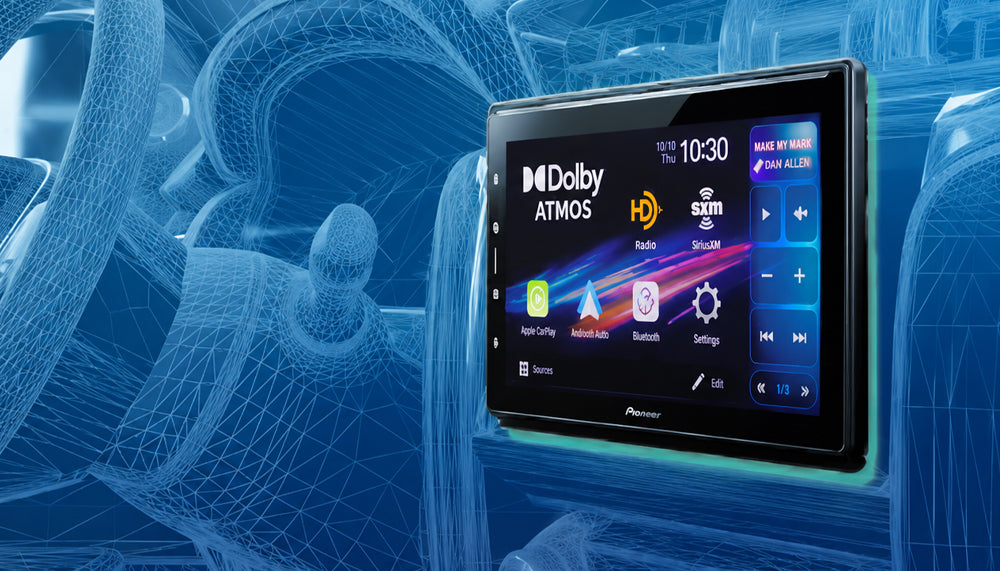
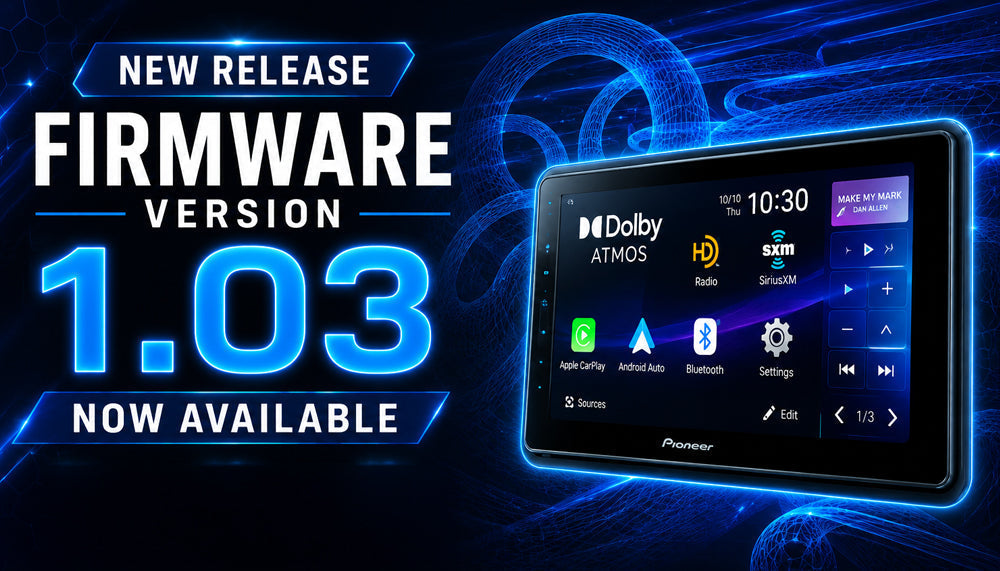
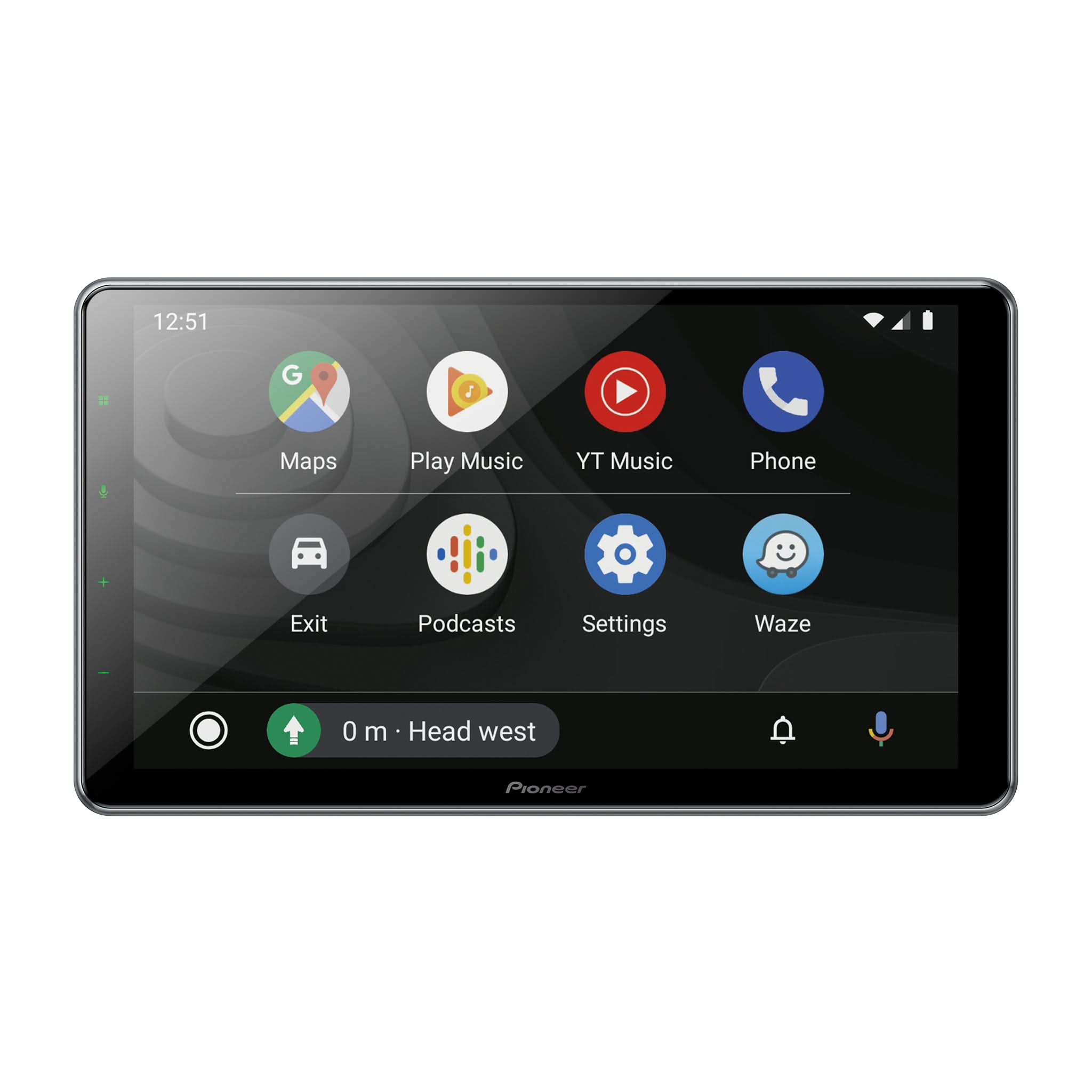
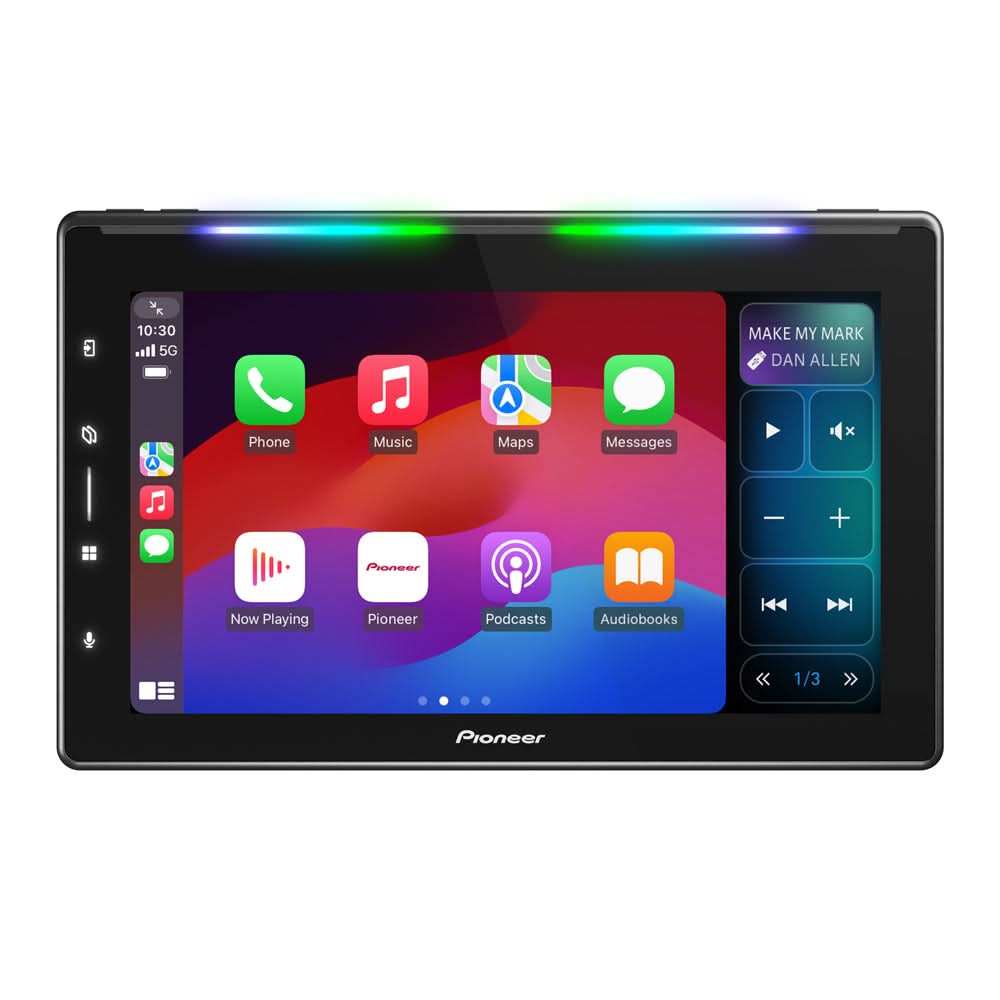
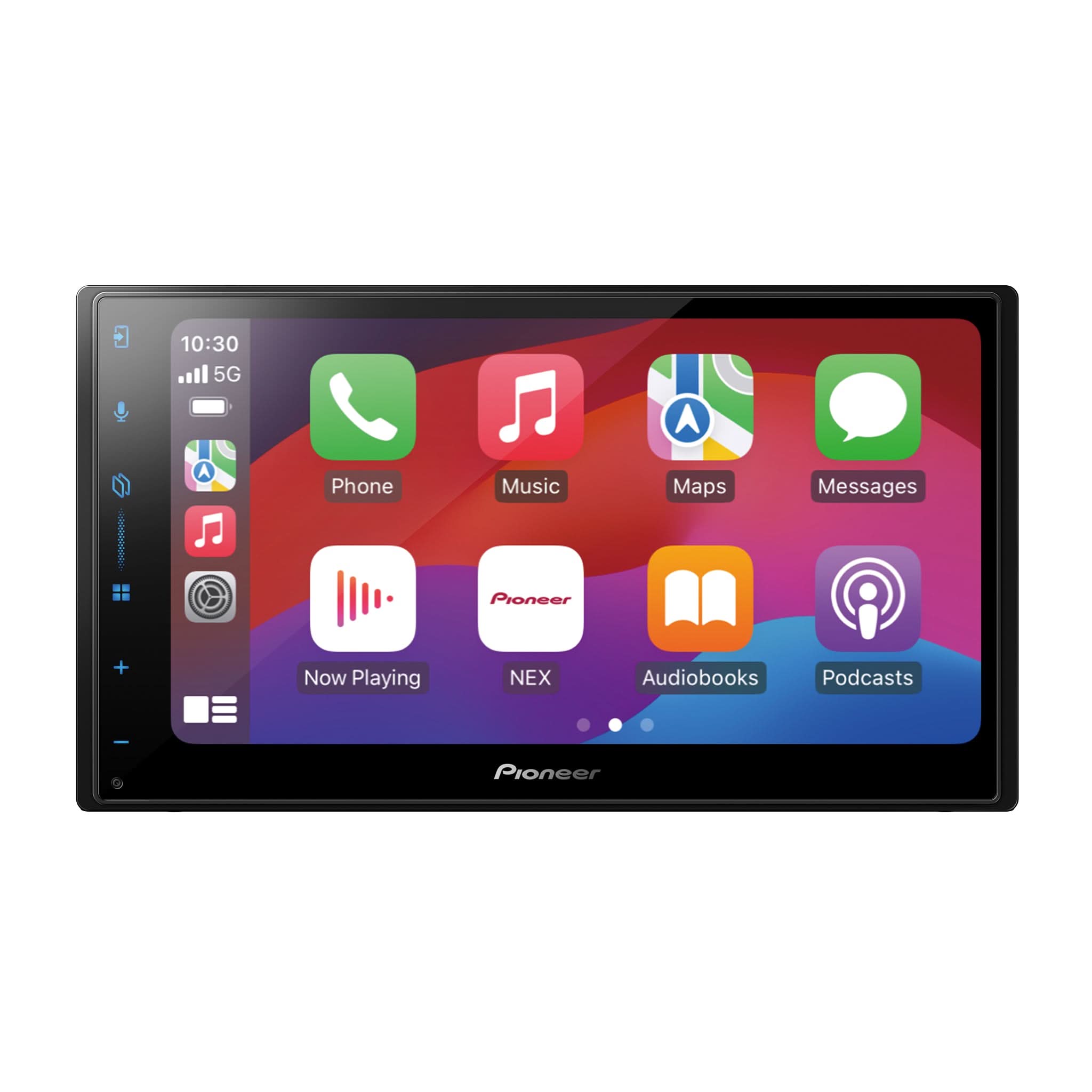
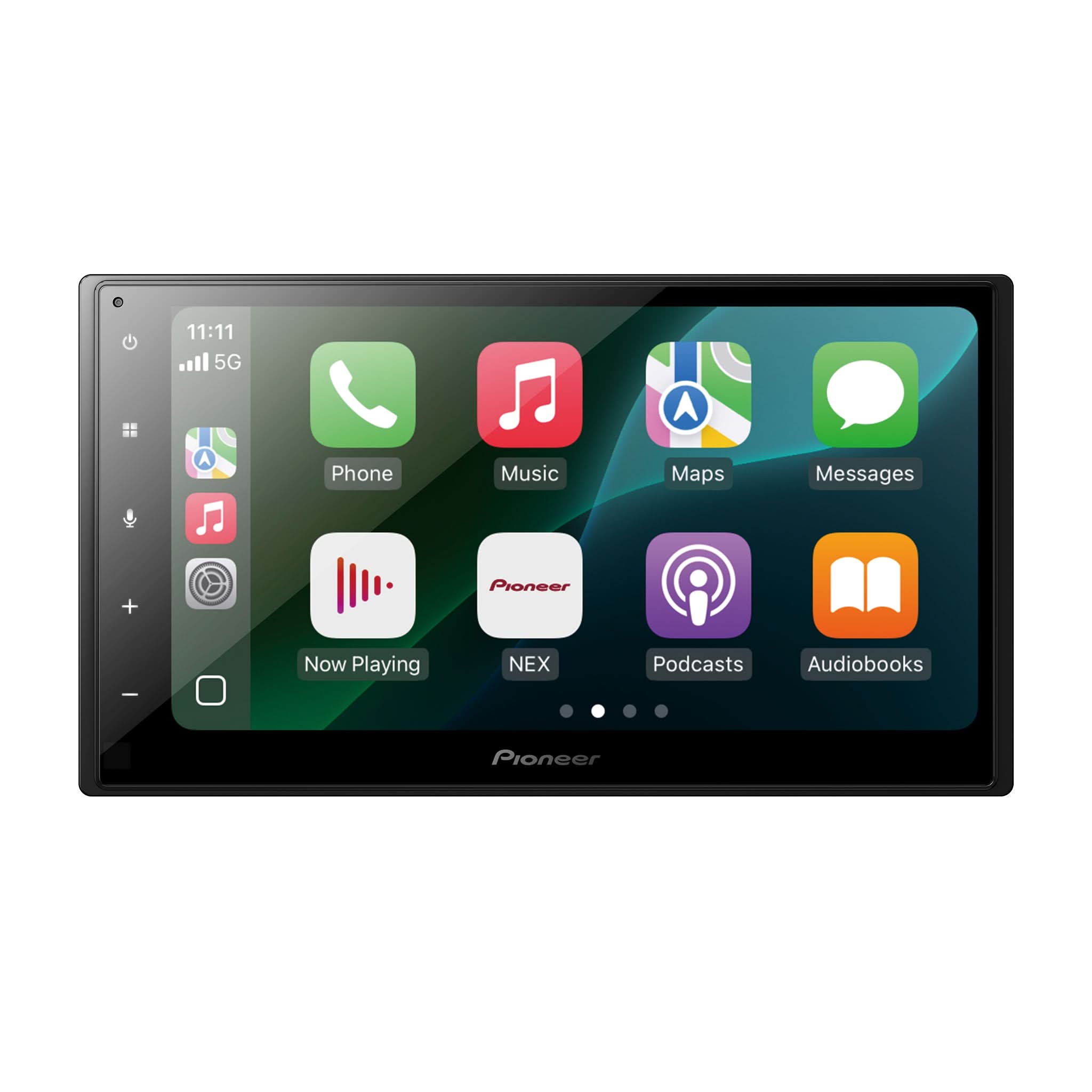
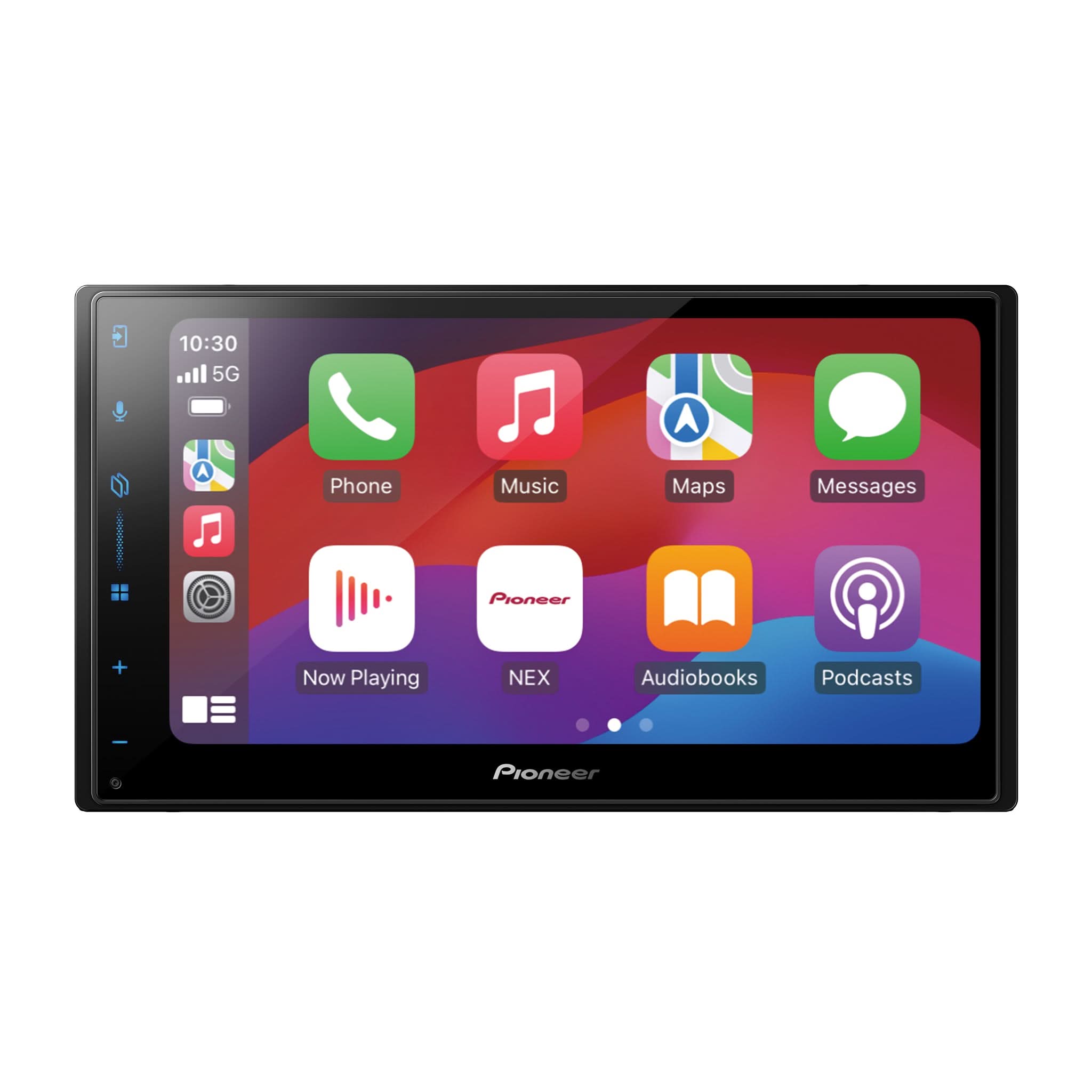
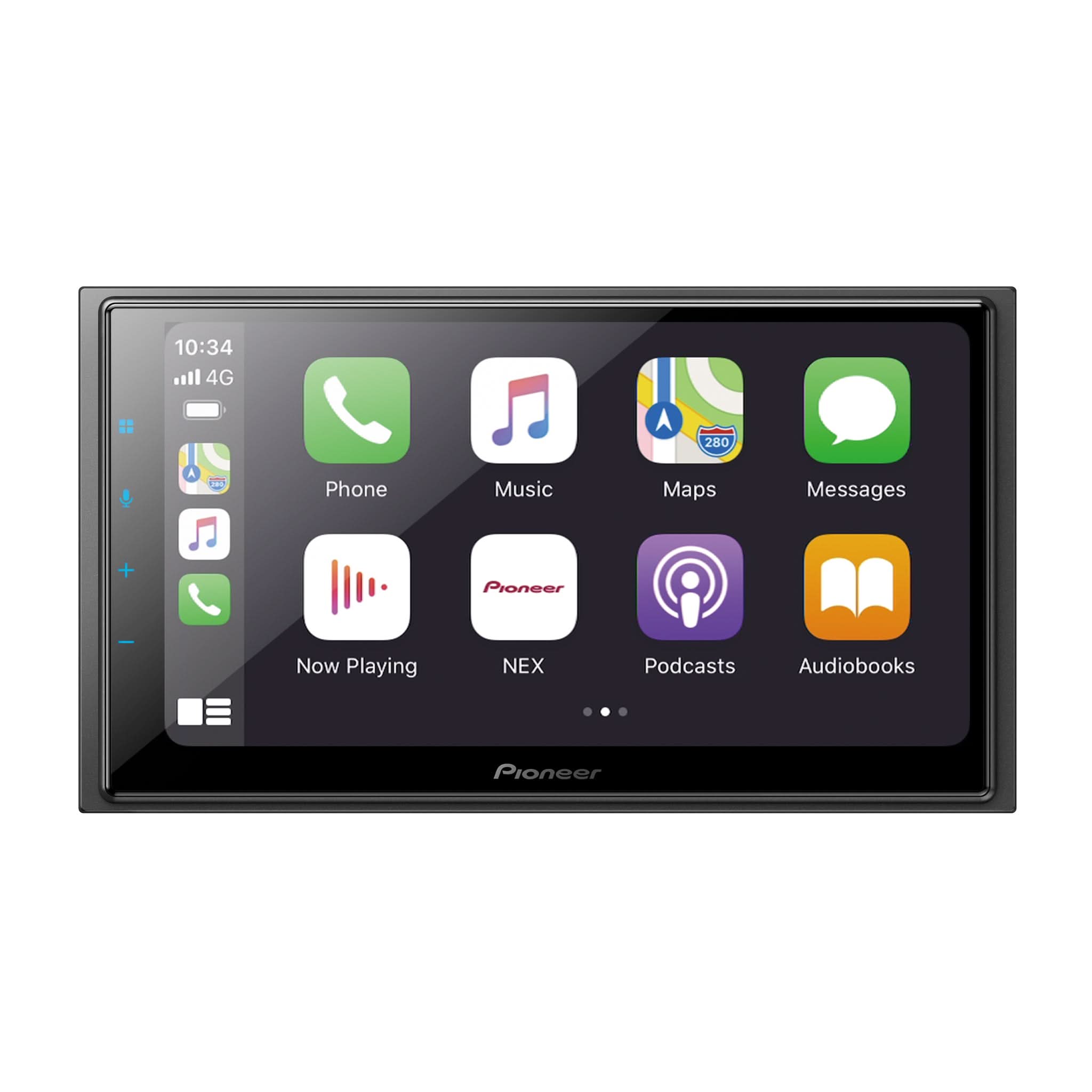
The Pioneer DMH-WT6000NEX and DMH-WT5000NEX are feature-rich floating screen receivers that offers a premium upgrade for many vehicles — but there’s one easily overlooked step that can trip up even experienced installers:
Steering Wheel Control (SWC) functionality is disabled by default. If you’re using an interface module like iDatalink Maestro or PAC, everything may appear wired correctly — but the steering wheel buttons won’t respond unless the head unit’s internal SWC setting is manually activated.
How to Enable Steering Wheel Controls
After installation and initial setup:
On both the DMH-WT6000NEX and DMH-WT5000NEX, tap the gear icon to enter the Settings Menu
Scroll to System Settings
Locate Steering Wheel Control
Change the setting from “Off” to “With Adapter”
Once enabled, the receiver will communicate properly with the interface module, allowing the vehicle’s OEM steering wheel buttons to control volume, track skip, voice commands, and more.
Common Pitfall: Misdiagnosing the Interface We’ve seen cases where installers suspect a faulty iDatalink or PAC module, when the actual issue is just the default setting on the head unit. Saving this quick step for last can save a lot of unnecessary troubleshooting.
Pro Tip If you’re setting up the system before the vehicle is fully reassembled, it’s a good idea to test SWC operation as part of your final system check. That way, you can confirm the setting is active before handing the car back to the customer.
{
"@context": "http://schema.org",
"@type": "Article",
"articleBody": "
Optimize Your Install with One Simple Setting Change
The Pioneer DMH-WT6000NEX and DMH-WT5000NEX are feature-rich floating screen receivers that offers a premium upgrade for many vehicles — but there’s one easily overlooked step that can trip up even experienced installers:
Steering Wheel Control (SWC) functionality is disabled by default.If you’re using an interface module like iDatalink Maestro or PAC, everything may appear wired correctly — but the steering wheel buttons won’t respond unless the head unit’s internal SWC setting is manually activated.
How to Enable Steering Wheel Controls
After installation and initial setup:
On both the DMH-WT6000NEX and DMH-WT5000NEX, tap the gear icon to enter the Settings Menu
Scroll to System Settings
Locate Steering Wheel Control
Change the setting from “Off” to “With Adapter”
Once enabled, the receiver will communicate properly with the interface module, allowing the vehicle’s OEM steering wheel buttons to control volume, track skip, voice commands, and more.
Common Pitfall: Misdiagnosing the InterfaceWe’ve seen cases where installers suspect a faulty iDatalink or PAC module, when the actual issue is just the default setting on the head unit. Saving this quick step for last can save a lot of unnecessary troubleshooting.
Pro TipIf you’re setting up the system before the vehicle is fully reassembled, it’s a good idea to test SWC operation as part of your final system check. That way, you can confirm the setting is active before handing the car back to the customer.",
"mainEntityOfPage": {
"@type": "WebPage",
"@id": "https://usa.pioneer"
},
"headline": "Don’t Forget to Enable Steering Wheel Controls","description": "Avoid a Common Install Mistake - Steering wheel controls on the DMH-WT6000NEX and DMH-5000NEX are off by default—learn how one quick setting change can save hours of troubleshooting with iDatalink or PAC modules.
→ Read More",
"image": [
"https:ArticleDrop"
],"datePublished": "2025-07-07T14:35:21Z",
"dateCreated": "2025-07-07T14:35:23Z",
"author": {
"@type": "Person",
"name": "Dylan Wold"
},
"publisher": {
"@type": "Organization","name": "Pioneer Electronics"
}
}